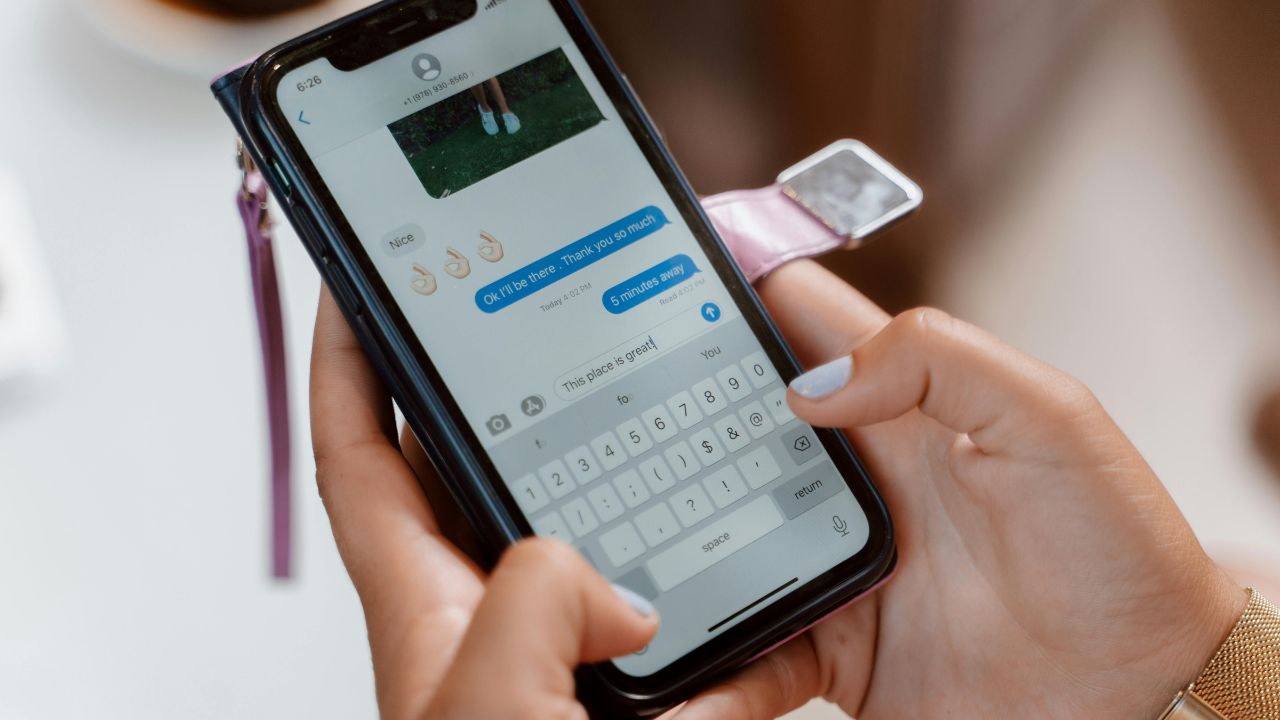
Facebook Messenger does not natively offer a button or direct option to export a conversation in PDF format. Therefore, it requires a multi-step method, combining data extraction via Facebook and manual conversion to PDF format. This approach allows you to obtain an accurate copy of exchanges, including messages, photos, stickers, and metadata such as dates and times.
The export first goes through Facebook’s integrated tool that allows you to download a complete or partial archive of your personal data, including Messenger conversations. Here’s how to proceed:
The operation can take from a few minutes to several hours depending on the size of your conversation history. You will receive a notification once the archive is ready for download.
The downloaded archive is a ZIP file containing several folders. Open the “messages” folder, then the one named “inbox”, in which each conversation appears as a subfolder bearing the contact’s name.
Inside this folder, you will find a “message_1.html” file. It contains all exchanged messages in a structured layout, with dates, times, names, and content. This file can be opened with any web browser.
Once the conversation is displayed in the browser, all that remains is to transform it into a PDF. Here is the simplest method:
The resulting file contains the entire conversation with the original formatting, making it easily usable for legal, evidence, or personal archiving purposes.
It is possible to download all your Messenger exchanges at once, but there is no option to automatically generate a PDF per conversation. Each thread must be opened individually and then converted. For advanced users, some Python scripts can automate reading HTML files and creating PDFs, but this requires development skills.
It is not possible to perform this operation from the mobile Messenger app. Even when accessing Facebook via a mobile browser, data download options are limited. Therefore, the manipulation must be done on a desktop computer or laptop, and then the PDF can be transferred to the smartphone if needed.


