


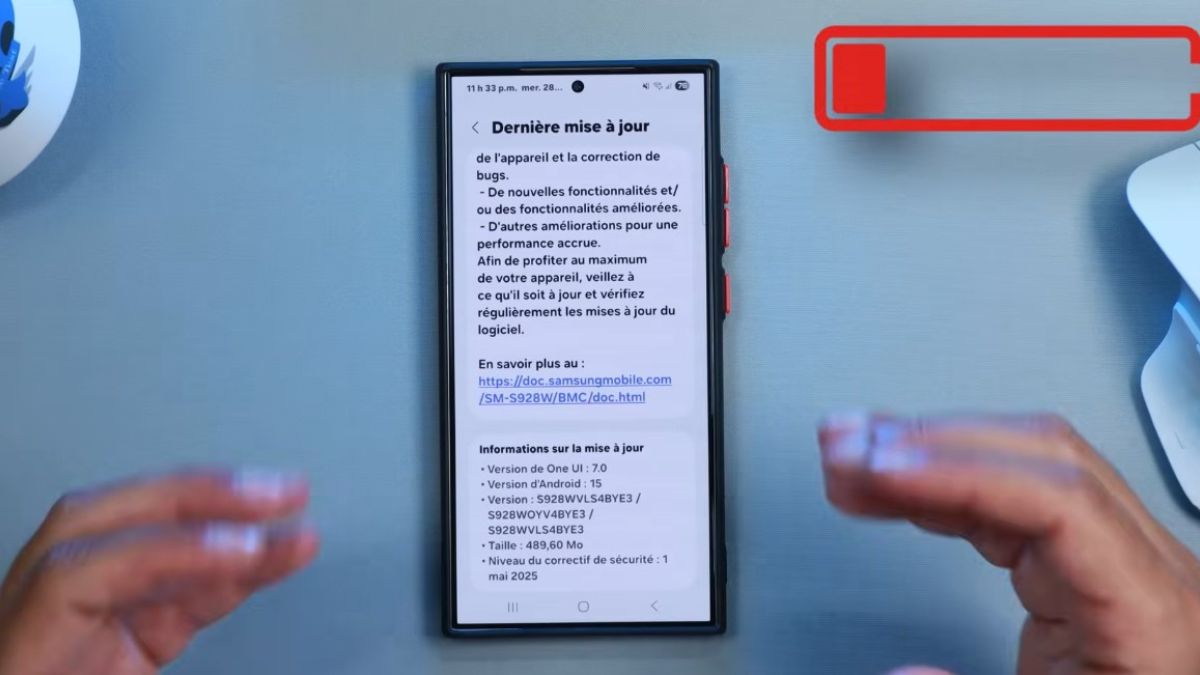
Some Samsung smartphone users are noticing a sudden drop in their battery life. The battery seems to drain even though usage hasn’t changed, apps appear normal, and no unusual notifications appear. However, several specific reasons can accelerate this energy loss. Some are easy to fix, others require some targeted checks, but all follow an identifiable logic.
One of the most common factors of battery loss comes from a network option or sensor that remains permanently active. WiFi constantly searching for an available network, GPS used by a background app, or permanent synchronization can drastically reduce battery life.
Statistics from several studies on mobile usage show that continuously activated sensors can increase energy consumption by 20 to 35 percent over a day.
The problem is that these services sometimes remain active even when the user no longer needs them. A simple weather app, a navigation service, or a social network can keep the GPS awake, triggering a rapid energy loss without visible signs.
Checking the Battery Consumption section in the settings is a reliable way to identify the offending app.
The display of your Samsung is one of the most power-hungry components. Many users automatically leave it at maximum brightness, often without realizing it. Outdoors, the smartphone boosts brightness to remain readable and sometimes continues to maintain it even indoors.
Tests conducted by several laboratories indicate that too high brightness can reduce battery life by 40 percent on some recent models.
AMOLED screens give a sense of clarity even at medium brightness. Reducing by just 10 to 20 percent can already generate a significant gain.
The ideal is to use adaptive brightness but ensuring it doesn’t get stuck at the maximum level. If it does, recalibration or temporary deactivation can fix the problem.
Many apps continue to run even when you no longer use them. Messaging services, social networks, assistants, banking apps, or productivity tools often remain active in the background.
This continuous activity can represent significant consumption as it mobilizes the processor, memory, and sometimes the network connection.
According to data observed on several Samsung models, background apps represent on average 30 percent of daily consumption, but this figure can rise to more than 50 percent when many non-optimized apps are installed.
Checking the list of active apps in the Battery settings allows for quickly identifying the culprits.
After an Android or One UI update, the phone rebuilds its indexes, optimizes apps, and restructures some internal files. During this period, the battery drains faster.
This behavior is normal and can last between 24 and 72 hours depending on the number of installed apps.
However, if the update was interrupted or poorly installed, abnormal consumption can persist longer.
Some users report that consumption can increase by 15 to 25 percent after an incomplete update.
A full restart or, in rare cases, a reinstallation via Smart Switch may be enough to solve the problem.
A lithium-ion battery loses performance when exposed to heat. GPS use in the car, repeated wireless charging, long gaming sessions, or a hot environment can lead to a rapid temperature rise.
When the battery exceeds about 35 degrees, it discharges faster and can even reduce its actual capacity over time.
Independent analyses show that a battery regularly used above 40 degrees can lose up to 20 percent of capacity in a year, compared to 5 to 8 percent under normal use.
If your Samsung often heats up, this probably explains a visibly decreasing autonomy.
When the mobile network is poor, your Samsung increases the power of the internal modem to capture the signal. This phenomenon goes unnoticed but can drain the battery very quickly.
A day in a low coverage area can consume twice as much energy as a day in a stable area.
Frequent travel exacerbates the phenomenon as the phone often changes antennas.
Temporarily switching to Airplane mode in dead zones is an effective trick to save some battery life.
Even if Samsung optimizes energy management, a lithium-ion battery loses capacity over time.
After 500 full charge cycles, or about a year and a half to two years of use, the battery can already lose between 10 and 25 percent of its initial capacity.
The signs of an aging battery are clear
• more frequent charging
• rapid drop below 30 percent
• phone heats up faster
• sudden shutdown below 10 percent
In these situations, replacing the battery is often the most sustainable solution.
Animated backgrounds use the GPU. Weather, calendar, social network, or activity tracker widgets update several times an hour. These are small actions but accumulated over a day, they represent significant consumption.
Some tests indicate that an animated background and several interactive widgets can increase consumption by 5 to 12 percent.
It’s not huge separately, but it adds up to other uses.
4K or 8K recording, video stabilization, high-definition photos, bursts, AI modes…
All these options heavily solicit the processor and sensors.
A 10-minute 4K recording session can consume the equivalent of 7 to 12 percent of the battery depending on the model.
Many users activate the most advanced modes by default without realizing their energy cost.
Here is a simple method to understand what is happening
• open Settings then Battery
• identify the top-consuming app
• check the screen to see if brightness is very high
• feel the phone’s temperature in hand
• test a day with 5G disabled to see the difference
• restart to stop blocked processes
In most cases, these checks are enough to identify the source of the battery drain.