


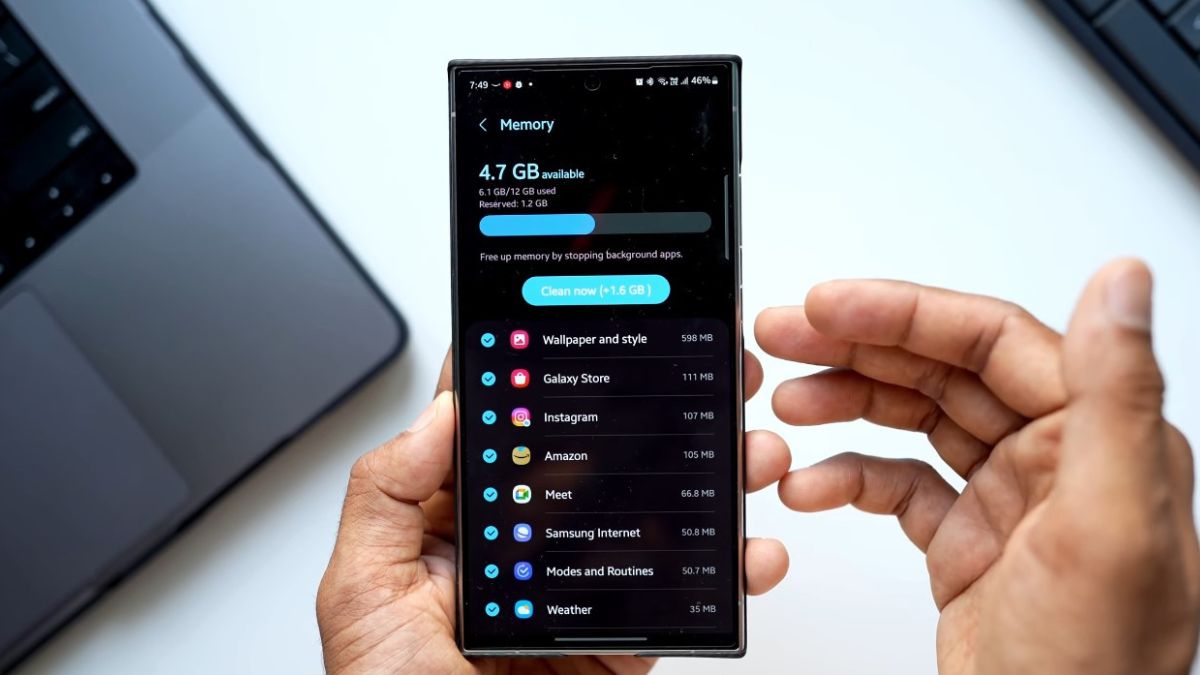
Samsung has significantly revised memory management with OneUI 6, especially on models equipped with 6 to 8 GB of RAM. The goal is clear: to take advantage of RAM Swap without affecting the device’s responsiveness.
The system must juggle between active applications, those paused, and invisible processes, while maintaining a sense of stability.
However, not everyone experiences the use of RAM Swap in the same way: some enjoy better multitasking, while others feel that applications reload more often. In reality, the aggressiveness of RAM Swap depends on a set of internal parameters that Samsung adjusts according to the phone’s load, the chip used, the type of storage, and even the temperature.
Unlike “stock” Android, OneUI 6 uses a custom adaptation of the zRAM mechanism.
Samsung doesn’t just compress part of the RAM: it continuously evaluates the state of resources to determine when to move certain blocks to storage.
The variables monitored continuously:
When an internal threshold is crossed, OneUI prioritizes moving:
This operation gives the impression of a more stable smartphone but can also produce the opposite effect when storage is too solicited. This is where the aggressiveness of RAM Swap manifests.
RAM Swap relies entirely on the smartphone’s UFS.
The faster the storage, the more discreet the swap.
The slower it is, the more visible the experience becomes.
OneUI 6 uses automatic detection of the type of storage:
On entry/mid-range models, the algorithm compensates for slow storage by emptying background apps more often rather than extending the swap too widely.
This explains the presence of more frequent reloads on some Galaxy A models.
OneUI 6 includes an automatic manager named RAM Plus.
This determines the amount of swap allocated: 2 GB, 4 GB, 6 GB, or 8 GB.
What few users know:
The higher the value, the more the system compensates by emptying intermediate applications.
In short:
The best setting depends on the model:
Samsung has calibrated OneUI 6 to ensure that less powerful models maintain a stable feel without saturating the swap.
Memory management doesn’t just depend on RAM: temperature plays a major role.
When the smartphone heats up:
Result:
During a prolonged session (gaming, videos, GPS), applications reload more often.
This is not a bug: it’s the system trying to keep the device at a stable thermal level.
Some apps are very memory-intensive, notably:
OneUI 6 applies an internal hierarchy:
This behavior explains why some social apps reload more often than simple utilities.
Even though OneUI manages everything automatically, several optimizations allow for more comfortable memory retention.
These tools force the closure of apps and unnecessarily worsen the swap.
Swap depends on storage. A saturated device slows down and purges apps more often.
Samsung regularly improves the aggressiveness of the memory manager via OTAs.
The Galaxy S22, S23, S24, and Fold benefit from:
Thanks to them, the system uses the swap much more discreetly, almost invisibly.
On these models, OneUI 6 keeps applications in the background much longer, even when they exceed 1.5 GB each (TikTok or Chrome, for example).
Samsung adjusts aggressiveness according to the phone’s power to find a consistent balance.