


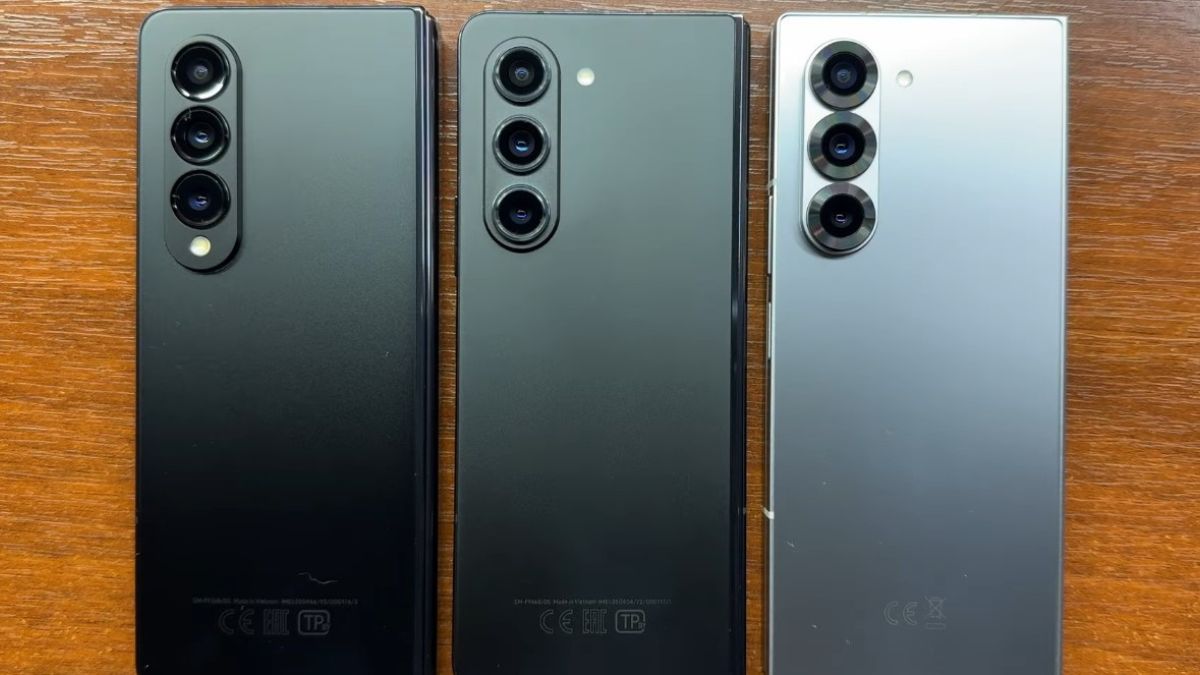
Since the update to One UI 6, many Galaxy Z Fold 4 users have noticed a change in the management of open windows. The interface introduces a reorganized system, more focused on visual shortcuts, but many miss the old presentation, which was more direct and simpler to use.
Some appreciate the novelty, but others would prefer to recover the traditional window display, especially those who use their Fold to replace a tablet or work in productive mode.
Samsung wanted to harmonize the presentation of open applications across its different models. The Fold 4, which had particularly advanced multitasking, was thus aligned with the behavior of classic models.
The result:
This new organization may seem less immediate for users who relied on the previous system.
Good news: Samsung has left several settings allowing for a more familiar management of open applications.
To achieve this, here are the essential steps.
Some menus in One UI 6 modify the multitasking logic without clearly stating it.
The most important setting is found here:
This trio reactivates a more flexible window management, similar to what One UI 5 offered.
On One UI 6, some of these settings may be disabled by default after the update, giving the impression that the Fold 4 has lost its capabilities.
The gesture allowing an app to be minimized or a second window to be opened is often reset during the update.
To reactivate it:
Once activated, this gesture allows for a much closer functionality to that of One UI 5.
Samsung does not clearly indicate it, but changing certain animations makes multitasking visually very different.
To restore the previous presentation:
Why this works:
One UI 6 applies new transitions that change how windows appear in the multitasking view. By disabling this setting, you regain a staging closer to that of before.
The Samsung sidebar (Edge Panel) plays an important role in window organization on a Fold.
For it to work as before:
This setting allows:
In practice, users who reactivate this option almost regain the multitasking behavior of One UI 5.
Some differences appear because One UI 6 unifies the settings between the internal and external screen.
To return to a management consistent with the original Fold 4:
This allows:
Once the correct settings are applied, here is what you should notice:
If you observe these improvements, it means your Galaxy Z Fold 4 has returned to multitasking largely similar to One UI 5.
If despite everything, the behavior remains different, here are three often overlooked points.
Some applications impose a full-screen mode or refuse split-screen after the update.
To check:
Some apps like Netflix, certain banks, or games may block multitasking if this option remains enabled.
The Labs options sometimes only take effect after a restart.
A simple reboot is often enough to restore the expected display.
This option does not delete data, it only affects visual configurations.
This restores the elements modified by One UI 6 that disrupt multitasking.