


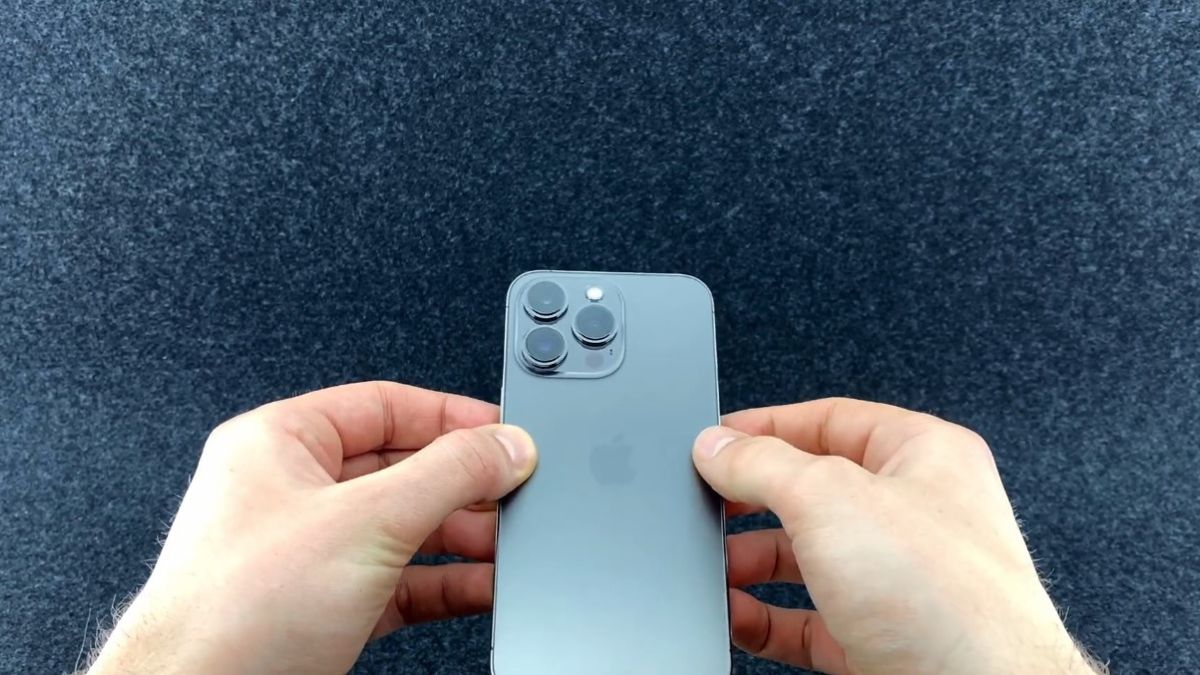
Since its launch, the iPhone 13 Pro has established itself as one of the most stable and still very powerful models in Apple’s catalog. But many users are unaware that there are a series of internal settings, hidden optimizations, and micro-tweaks capable of offering a much more refined experience without installing third-party software.
These adjustments affect the display, system animation, touch behavior, haptic feedback, sound, and even the way iOS handles transitions. The result: an iPhone that reacts more sharply, displays more cleanly, and gives the impression of an even more high-end model.
The iPhone 13 Pro is equipped with a 120 Hz ProMotion display, but iOS does not always use this maximum refresh rate. However, some system settings allow optimizing how the screen adopts the highest frequencies.
To activate:
These three settings ensure that the iPhone more often uses 120 Hz animations.
The visual rendering becomes much cleaner, especially during Safari scrolling, multitasking, and navigation gestures.
The tactile feel greatly influences the perception of fluidity. iOS already has low latency by default, but a setting can improve the overall responsiveness of the device.
Key menu:
Settings → Accessibility → Touch → Haptic Touch
Apple allows choosing a more pronounced haptic feedback for certain actions:
By activating the haptic feedback of the keyboard and system, the iPhone offers a more precise sensation, giving the impression that each action is “physically anchored.” Many users describe an iPhone that seems more responsive, as if it responds instantly to touch.
Since iOS 17, a little-known setting allows the iPhone 13 Pro to improve photo rendering, especially for poorly lit subjects or fast movements.
To activate:
This option slightly reduces internal processing but offers:
For those who still use the iPhone 13 Pro today, this tweak gives a sense of modernity to the photo section.
There are two settings that modify the perceived speed of system animations. Without jailbreak, iOS already allows speeding up the display.
By removing certain graphic layers, screens load faster.
Multitasking becomes instantaneous, with much less micro-latency during app opening or closing.
Safari has an option related to website scripts that can slow down the experience. By modifying it, scrolling becomes much smoother.
To do:
This removes background calculations on certain sites. Scrolling then gains stability, especially on very heavy sites.
The “premium” feel also comes through sound. The iPhone 13 Pro has two very powerful stereo speakers, but a sound setting can change the immersion during transitions, videos, and apps.
Tip:
Settings → Accessibility → Audio/Visual → Sound Adjustment
Choose:
Dynamic spatialization also enhances the sense of depth with AirPods.
A streamlined iPhone 13 Pro often seems faster. One technique is to:
Reducing the number of visible icons improves navigation, as iOS has fewer elements to refresh with each opening.
iOS accumulates a significant cache over the months. A manipulation allows restarting internal processes without rebooting:
This method clears internal processes and speeds up the opening of heavy applications.
An iPhone 13 Pro with a battery below 80% can limit certain animations or reduce performance peaks.
A few settings help maintain a more lively operation:
These actions allow the iPhone to use its full power without restrictions.
By combining:
These settings require no tools, no external applications, nor any risk-taking.
Just a better use of the possibilities offered by iOS.