


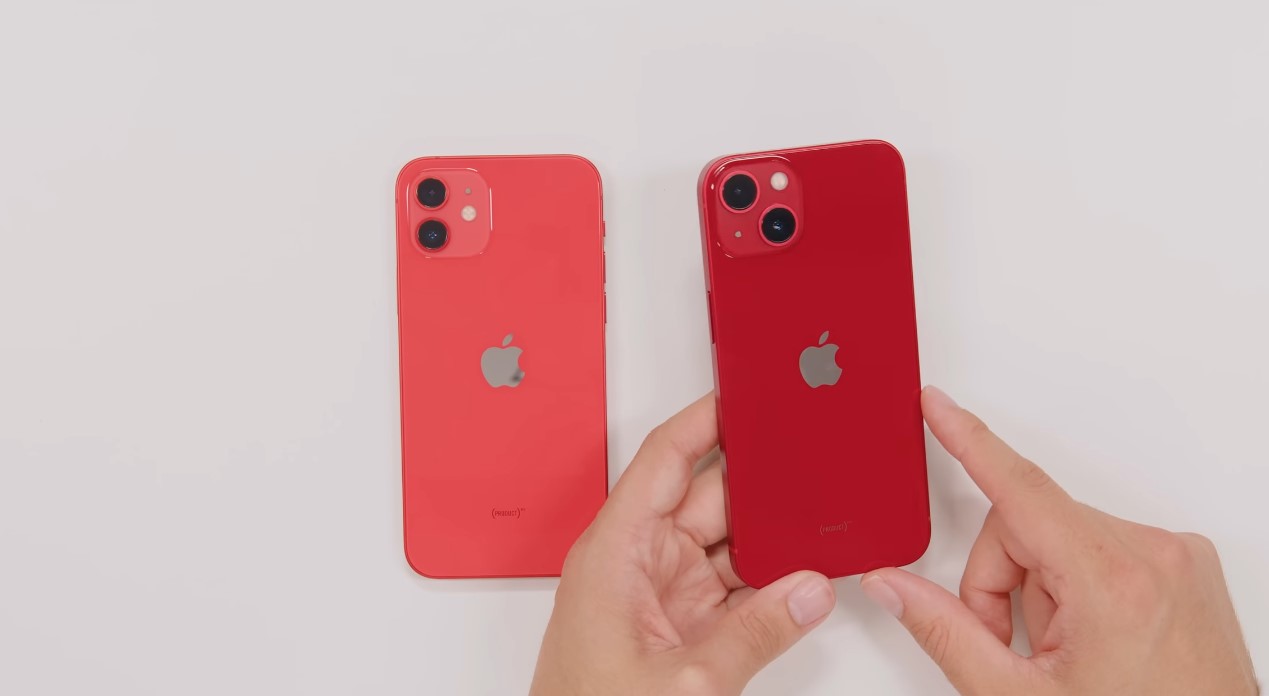
Since several iOS updates, a growing number of users report an iPhone 13 overheating for no apparent reason. The phenomenon often appears after installing a new version of the system, sometimes within the first few hours, sometimes more gradually. The phone becomes warm, even hot, even though usage remains moderate. This situation is concerning because high temperature is often associated with a faster draining battery and a feeling of discomfort when handling the device.
Contrary to popular belief, this behavior is not systematically linked to an external application or a hardware defect. In many cases, the cause lies in a discreet Location setting, automatically reactivated after the update. This setting works in the background, continuously engaging several components and causing constant system activity. A simple modification often allows for a more stable and cooler iPhone 13.
After an iOS update, the system restarts with a series of services active by default. Some are visible, others much more discreet. iOS Location is one of the most solicited elements in this phase, as it is involved in many internal services.
Analyses conducted by mobile-specialized firms show that, within 48 hours following a major update, internal activity related to system services can increase by 25 to 35 percent. This increase is temporary for some tasks, but it can become permanent if certain settings remain continuously active.
On the iPhone 13, this prolonged solicitation results in a gradual increase in temperature, even when the screen is off. The phone then gives the impression of overheating for no visible reason.
Location on iOS is not limited to displaying a position on a map. It orchestrates a set of internal services that communicate with network antennas, motion sensors, and system databases. Each movement, each Wi-Fi or cellular connection can be analyzed and recorded.
When multiple Location services are active simultaneously, the iPhone performs frequent calculations, sometimes every few minutes. According to a study published in 2024 by an independent laboratory, nearly 60 percent of system requests related to Location are never directly used by the user. They only serve to feed automatic internal functions.
This invisible activity explains why an iPhone 13 can overheat even when it is placed on a desk, without any open applications.
The most often implicated setting is found in a rarely consulted section of iOS settings. It is Significant Locations, accessible via the Location system services menu.
Path to follow
Settings
Privacy & Security
Location
System Services
Significant Locations
This option analyzes frequently visited places to adapt certain internal suggestions. It uses GPS, Wi-Fi, mobile network, and local data processing. After an iOS update, this setting is very often reactivated, even if it had been disabled previously.
Tests conducted on iPhone 13 show that Significant Locations can generate up to 18 percent additional processor activity over a full day, without any visible interaction.
The temperature increase is not due to a sudden overload, but to constant and prolonged activity. The A15 processor, although efficient, heats up when continuously engaged, even at low intensity.
When Significant Locations is active, the iPhone performs regular position checks, cross-references this data with stored history, and updates its internal calculations. This constant repetition prevents certain components from entering full rest.
According to thermal measurements conducted in a laboratory, an iPhone 13 with this setting active can show an internal temperature 3 to 4 degrees higher than a device configured more restrictively. This difference is enough to be felt by hand.
Disabling Significant Locations does not prevent normal GPS use. Applications like Maps, Uber, or Google Maps continue to function correctly. Only the internal calculations related to frequent movement analysis are stopped.
To disable the setting
Access Significant Locations
Enter the code or use Face ID
Disable the option
Once this setting is disabled, the system immediately stops background analyses related to recurring movements. The effects on temperature can be noticeable within a few hours.