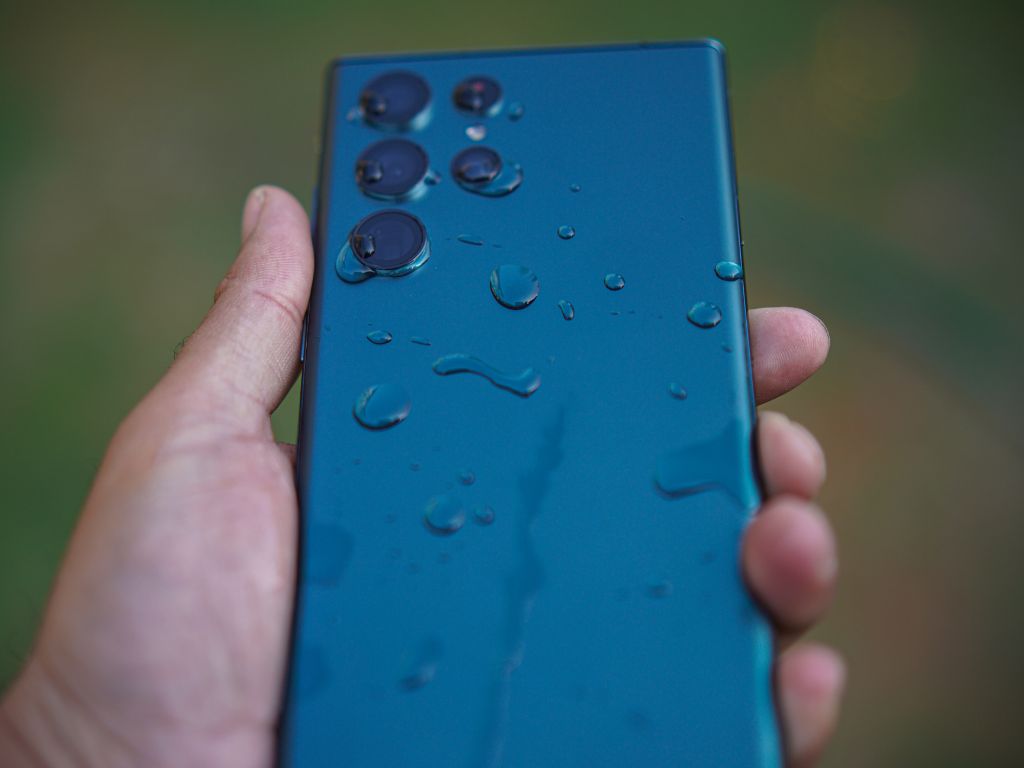
Samsung smartphones include a moisture detector to prevent short circuits and protect internal components. This device prevents charging when moisture is detected in the USB port, which can be useful but also inconvenient when it activates incorrectly. If you encounter a message indicating “Moisture detected in the charging port”, several solutions exist to resolve this issue and restore normal use of your device.
Why does your Samsung display a moisture detected message?
The moisture detector monitors the presence of water or condensation in the charging port to prevent any electrical damage. This alert message generally appears after exposure to water, but it can also be triggered by humid weather conditions, sweat, or even improper cleaning.
Recent Samsung models like the Galaxy S and Note are particularly equipped with this feature. However, it happens that this system remains activated even when the moisture has disappeared, preventing the phone from charging.
How to disable or bypass the Samsung moisture detector?
If your phone has been exposed to moisture, the first step is to dry its USB port properly.
- Turn off your smartphone immediately to avoid any risk of a short circuit.
- Use a dry and clean cloth to absorb the moisture present in the charging port.
- Gently blow dry air (or use low-intensity compressed air) to remove any residual moisture.
- Let the phone dry naturally in a dry place for several hours. Placing the device near a gentle heat source, like a low-intensity radiator, can speed up the process.
- Place your phone in a silica gel bag (the small absorbent bags provided with some electronic products) to speed up moisture removal.
Software solutions to remove the moisture alert
If your phone is perfectly dry but the moisture alert persists, the problem may be software-related.
- Restart your smartphone, a simple solution that sometimes resets moisture detection.
- Clear the USB cache by going to Settings > Apps > Android System > Storage > Clear cache.
- Temporarily disable the moisture detector by forcing the Android System app to stop. This method is effective but should be used with caution.
Advanced methods in case of persistent problems
If the error message continues to appear despite all these attempts, some more radical solutions can be considered.
- Perform a factory reset. Before considering it, back up your data as this operation will restore your phone to its original state.
- Try a wireless charger if your smartphone is compatible. This allows you to completely bypass the use of the USB port.
If after these steps, your phone still refuses to charge or displays the alert, it may be a hardware issue requiring the intervention of a technician.
How to avoid the appearance of the moisture message in the future?
To avoid experiencing this problem again, a few precautions should be taken:
- Avoid charging your phone in a humid environment, such as a bathroom after a hot shower.
- Use a waterproof protective case if you frequently use your smartphone in conditions where moisture is present.
- Regularly clean the charging port with a soft brush to prevent dust buildup, which can trap moisture.
- Never plug in a USB cable with wet hands or in an environment where water is present.


